



Discovering Apps
This article covers discovering and evaluating individual apps using the TrueNAS UI. For details on how to set up app storage, configure global settings, and prepare TrueNAS to deploy applications, see Initial Setup. For installing applications from the catalog, see Installing Apps. For custom applications, see Installing Custom Apps.
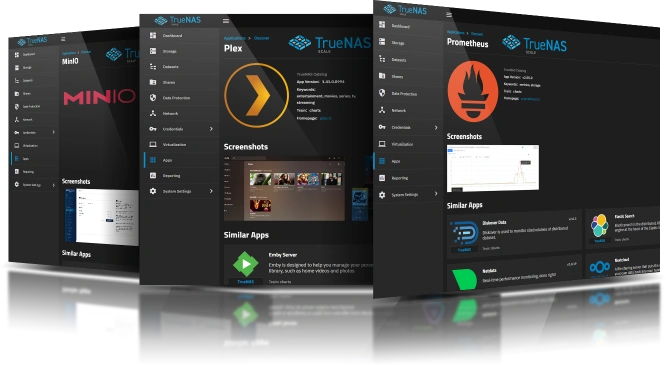
The Discover screen shows application widgets based on the trains selected on the Train Settings screen.
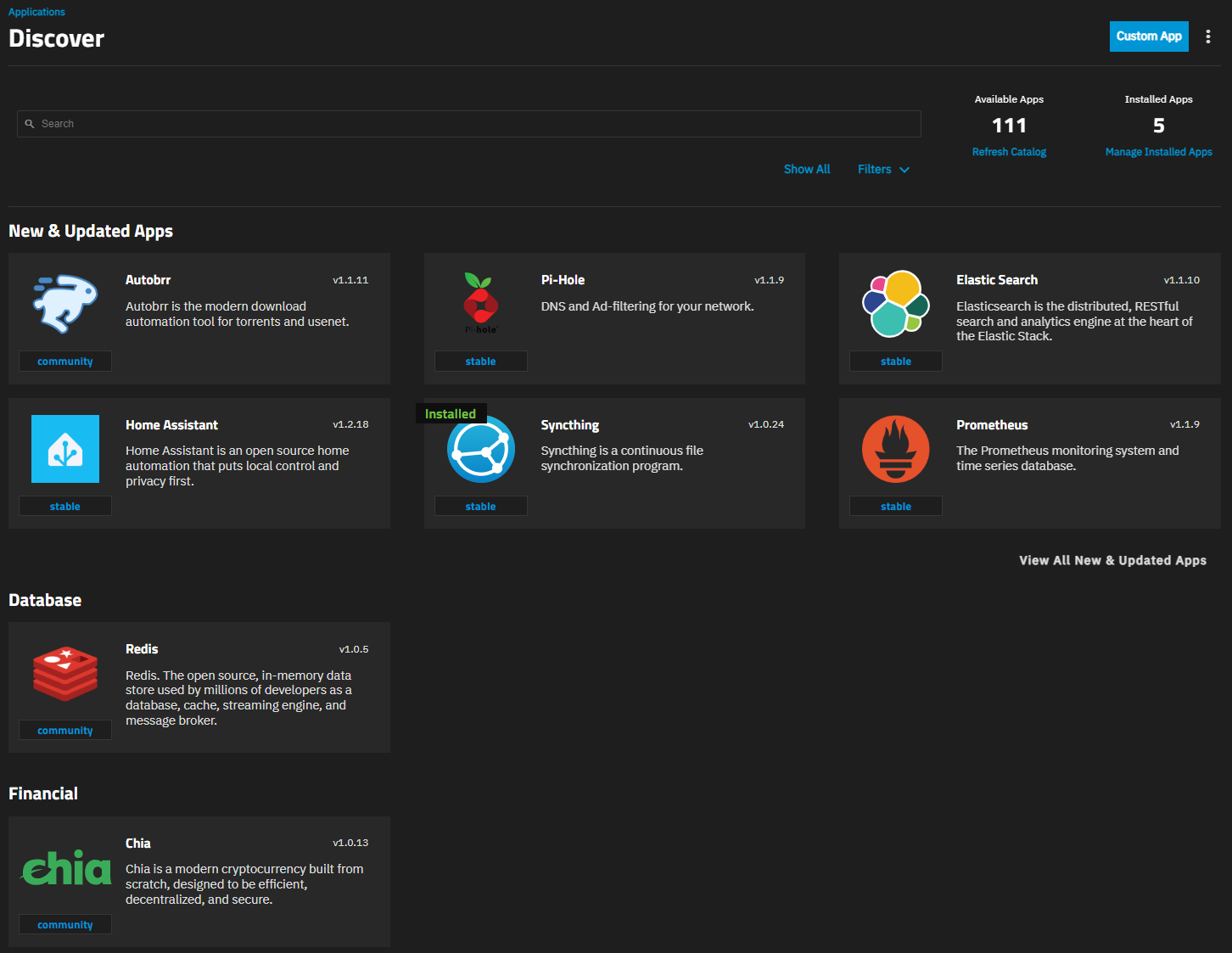
Use the Discover screen links to access other functions.
- Refresh Catalog - Refreshes the list of app widgets after changing train settings or changes to the catalog.
- Manage Installed Apps - Opens the Installed apps screen where you access the Configuration menu to manage general application settings.
- Custom App - Allows users to deploy custom applications.
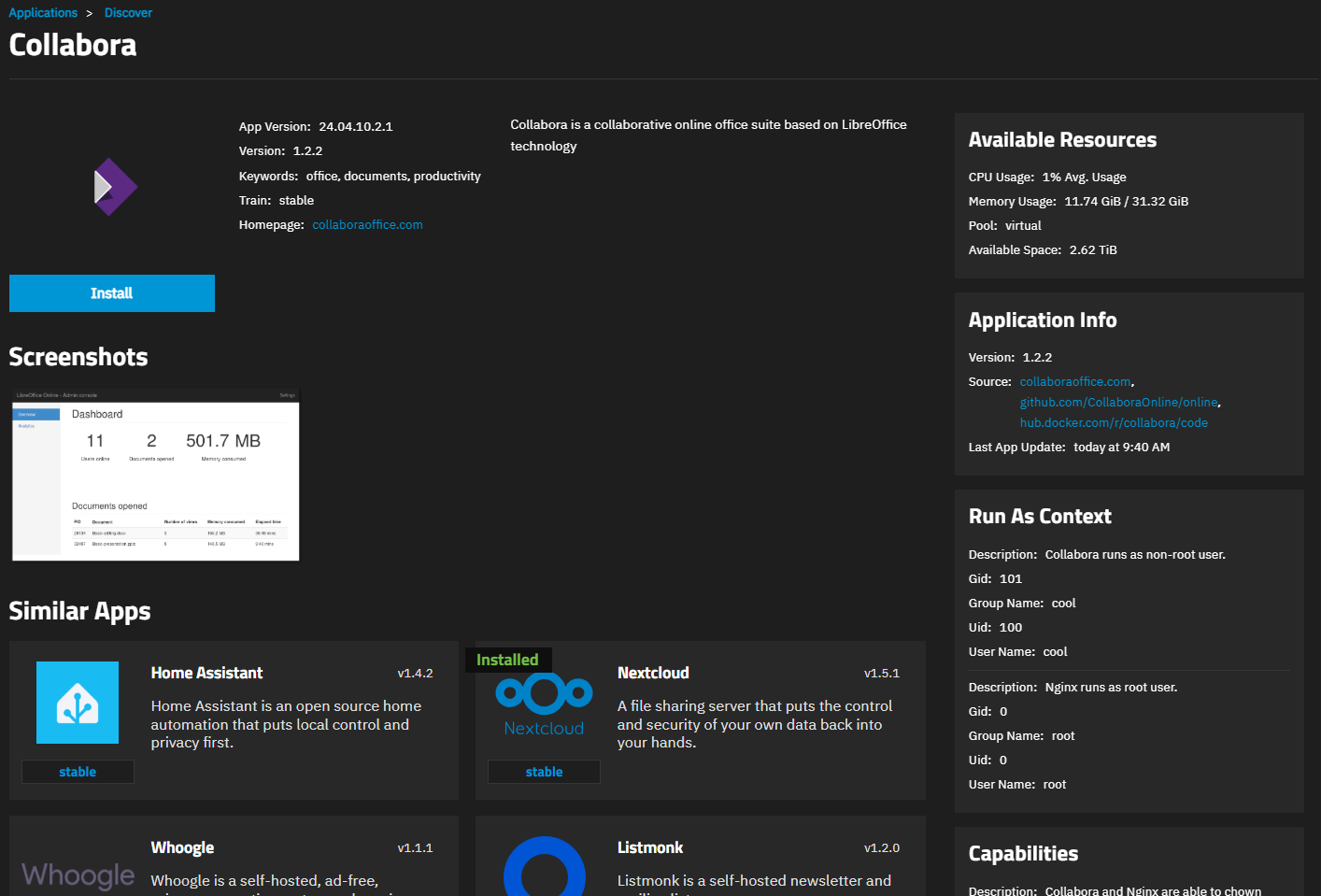
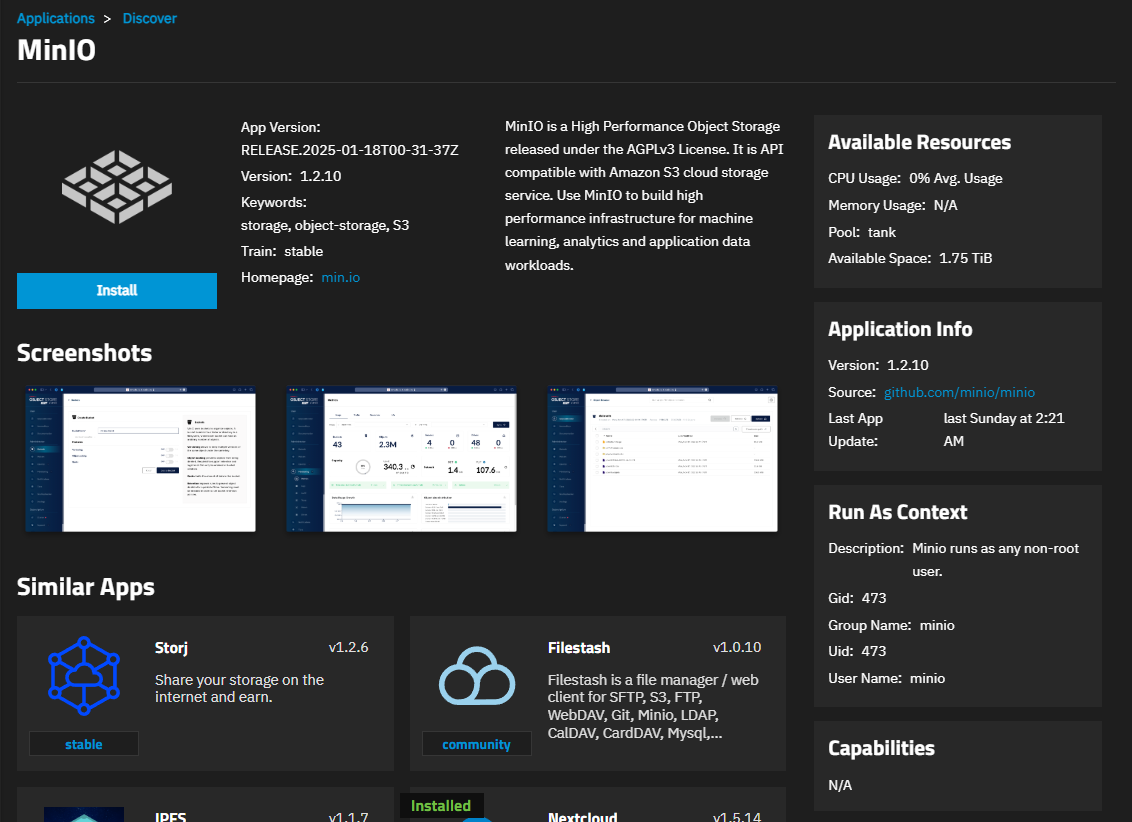
Click on an app widget to open the app information screen with details about the selected application.
TrueNAS applications are available in three catalogs (trains):
Applications validated by TrueNAS Engineering for Enterprise deployment on TrueNAS Enterprise-licensed systems.
These applications receive either Enterprise Deployment Support or full Enterprise Application Support from the TrueNAS Support team.
Applications tested by the TrueNAS Engineering team and chosen based on their functionality and integration with TrueNAS.
TrueNAS Engineering can provide software maintenance for these applications, but the TrueNAS Support team does not offer continual support. Issues for these applications are tracked separately and addressed on a best-effort basis in the community forums and other user-driven resources.
Applications proposed and maintained by the TrueNAS community without official TrueNAS support.
Issues for these applications are tracked separately and addressed on a best-effort basis in the community forums and other user-driven resources.
Some apps proposed by community members might be adopted as official Stable train apps.
See App Support Definitions for more information on application support levels.
TrueNAS Community Edition systems populate the Discover apps screen with the Stable and Community catalogs populate by default. TrueNAS Enterprise-licensed systems show the Enterprise catalog.
Users can change the apps displayed on the Discover screen by adding or removing trains. To add or remove a train, Settings on the Configuration dropdown list to open the Settings screen.
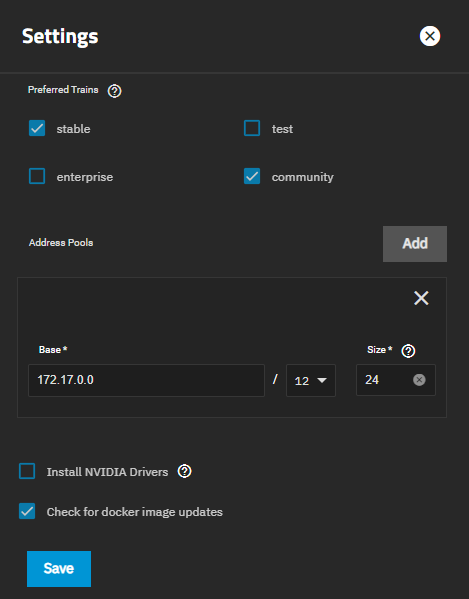
Select the Preferred Trains checkbox(es) for the train(s) to include, then click Save.
After making a change, go to the Discover screen and click on Refresh Catalog to pull the catalog from the repository and refresh it in TrueNAS.
To remove a train from the catalog, deselect the checkbox for the train on the Settings screen, then click Save. You must have at least one train selected.
In TrueNAS 26 and later, the information screen shows two version identifiers for the selected application: Version and Revision. In TrueNAS 25.10 and earlier, these fields are labeled App Version and Version respectively.
Version is the upstream application version — the version of the software released by the upstream project, such as 24.04.10.2.1 for Collabora. Version also appears in the Application Info widget on the Installed screen.
Revision is the TrueNAS catalog revision — the version of the app entry in the TrueNAS app train, for example 1.2.2. The Revision identifies catalog packaging updates and appears on the Installed screen and in the install wizard for the app.
Updates to an app can involve a new upstream Version, a new Revision, or both. In TrueNAS 26 and later, the Applications table on the Installed screen shows Update available when the upstream version changes, or Revision available when only the catalog revision changes. In TrueNAS 25.10 and earlier, the table shows a general update indicator without distinguishing between version and revision updates.
Click Refresh Catalog on the Discover screen to refresh the app catalog. Refresh the app catalog after adding or editing the app trains on your system.
To change how app widgets show on the screen, click the down arrow to the right of Filters, and select the filter option to use.
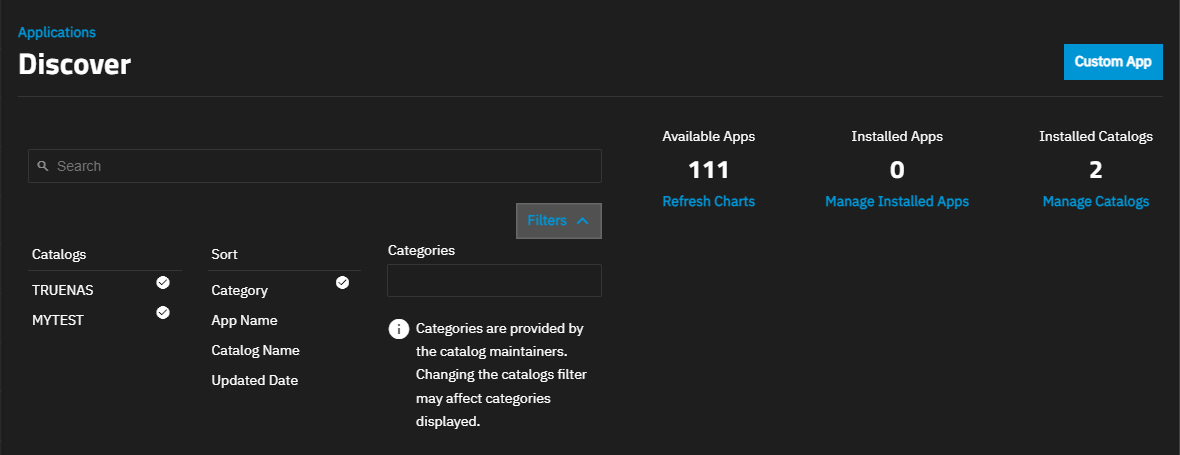
To quickly locate a specific app, begin typing the name in the search field. The screen shows apps matching the typed entry.
To sort app widgets by category, click on Categories. To select multiple categories, click Categories again and select another category from the dropdown.
After installing an application, the Installed applications screen shows the app in the Deploying state. The status changes to Running when the application is fully deployed and ready to use.
Ready to move on? Continue your TrueNAS Apps journey below.

Learn more about how to find, install, and manage applications in TrueNAS.

Browse the full catalog of applications available in TrueNAS!

Review initial setup, securing apps, contributing apps and resources, and more.

View featured applications, the most deployed, and the newest applications available in TrueNAS.