




BookStack Deployment Guide
Support, maintenance, and documentation for applications within the Community catalog is handled by the TrueNAS community. The TrueNAS Applications Market hosts but does not validate or maintain any linked resources associated with this app.
We welcome community contributions to keep this documentation current! Click Edit Page in the top right corner to propose changes to this article.
BookStack is an open-source wiki platform for organizing and storing documentation. This guide walks you through deploying BookStack as a TrueNAS app.
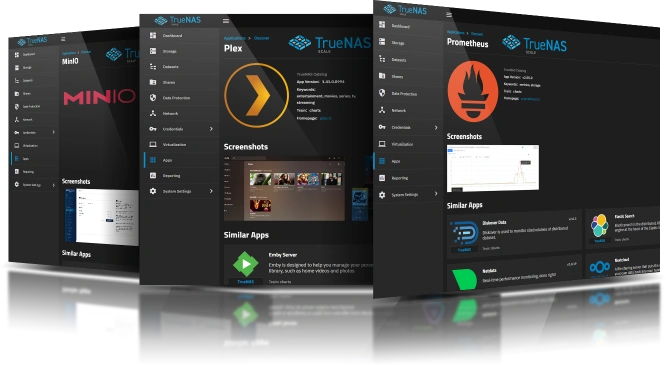
Navigate to Apps in the TrueNAS web interface. Click Discover Apps and search for “bookstack” in the catalog. Click Install.
The installer presents configuration fields. Complete them in order from top to bottom.
Application Name
Accept the default bookstack or enter a custom name if deploying multiple instances.
Timezone
Select your timezone from the dropdown. BookStack uses this for timestamps in activity logs and scheduled tasks.
Database Password
Enter a password for the BookStack database user. Choose a secure password.
Root Database Password
Enter a password for the database root user. Choose a secure password.
App URL
Enter the complete URL where users access BookStack.
Format: http://hostname:port or http://ip-address:port
Examples:
http://truenas.local:30214http://192.168.1.50:30214
Include the protocol (http:// or https://) and port number. The port matches the Port Number in the Network Configuration section below. BookStack uses this URL to generate correct links and redirects.
App Key
Enter a 32-character encryption key for securing sessions and cookies.
Generate a key using:
openssl rand -hex 16
Or use an online generator: https://generate-random.org/api-keys (set length to 32 characters)
Do not modify this value after installation.
Additional Environment Variables
Leave empty unless configuring advanced features.
WebUI Port
Configure how users access BookStack.
Port Bind Mode
Accept the default setting.
Port Number
The installer assigns a port automatically from the NodePort range (30000-32767). Note this port number and use it in the App URL field above.
Example: If assigned port 30214, access BookStack at http://hostname:30214
Host IPs
Leave empty to bind to all available network interfaces.
BookStack requires three storage paths for different types of data. Use Host Path for production deployments to maintain granular control over your data.
Stores images and media embedded in pages.
Type
Select Host Path for production deployments.
Host Path Configuration
Create a dataset or directory on your TrueNAS system first, then enter the path.
Example: /mnt/pool-name/bookstack/public-uploads
Recommended size: 5-10 GB for typical usage.
Enable ACL
Check this box to configure permissions.
ACL Entries
Add two entries to grant the BookStack container access:
Entry 1:
- ID Type: User
- ID: 33
- Access: MODIFY
Entry 2:
- ID Type: Group
- ID: 33
- Access: MODIFY
The container runs as UID/GID 33 (www-data).
Stores file attachments added to pages.
Type
Select Host Path for production deployments.
Host Path Configuration
Create a dataset or directory on your TrueNAS system first, then enter the path.
Example: /mnt/pool-name/bookstack/uploads
Recommended size: 5-20 GB depending on expected attachment usage.
Enable ACL
Check this box to configure permissions.
ACL Entries
Add two entries:
Entry 1:
- ID Type: User
- ID: 33
- Access: MODIFY
Entry 2:
- ID Type: Group
- ID: 33
- Access: MODIFY
Stores page content, user data, and metadata.
Type
Select Host Path for production deployments.
Host Path Configuration
Create a dataset or directory on your TrueNAS system first, then enter the path.
Example: /mnt/pool-name/bookstack/database
Recommended size: 2-5 GB for small to medium deployments.
Enable ACL
Check this box to configure permissions.
ACL Entries
Add two entries to grant the database container access:
Entry 1:
- ID Type: User
- ID: 999
- Access: MODIFY
Entry 2:
- ID Type: Group
- ID: 999
- Access: MODIFY
The database container runs as UID/GID 999.
Leave empty unless you need custom storage mounts for themes, fonts, or other customizations.
Leave empty for standard deployments.
CPUs
Allocate CPU cores for BookStack.
Default: 2 cores
Increase for deployments with many concurrent users.
Memory (in MB)
Allocate RAM for BookStack.
Default: 2048 MB (2 GB)
Increase if handling large documents or many simultaneous users.
Click Install. TrueNAS deploys the BookStack application and creates the database. The initial startup takes 1-2 minutes while database migrations complete.
Access BookStack using the configured App URL or click the Web UI button on the BookStack app card in TrueNAS. Wait for database migrations to complete before accessing.
Default credentials:
- Email:
admin@admin.com - Password:
password
Change the admin credentials immediately:
- Click your profile icon (top right)
- Select Edit Profile
- Update Password and Email
- Click Save