


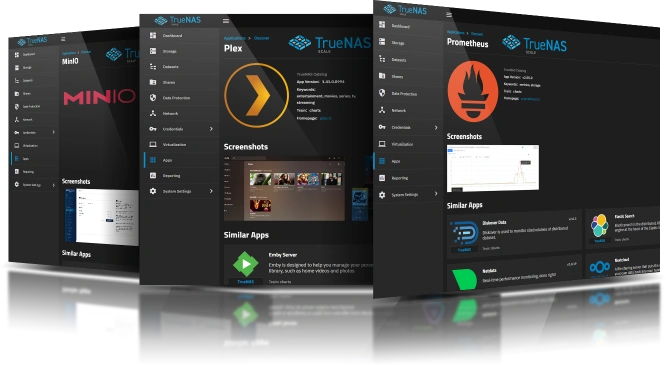
TrueNAS Apps Market

Expand your system's capabilities quickly and easily by adding third-party software.

Download TrueNAS
TrueNAS UI and Apps screens

Frigate Deployment

Support and documentation for applications within the Stable catalog is handled by the TrueNAS community. The TrueNAS Applications Portal hosts but does not validate or maintain any linked resources associated with this app.

We welcome community contributions to keep this documentation current! Click Edit Page in the top right corner to propose changes to this article.

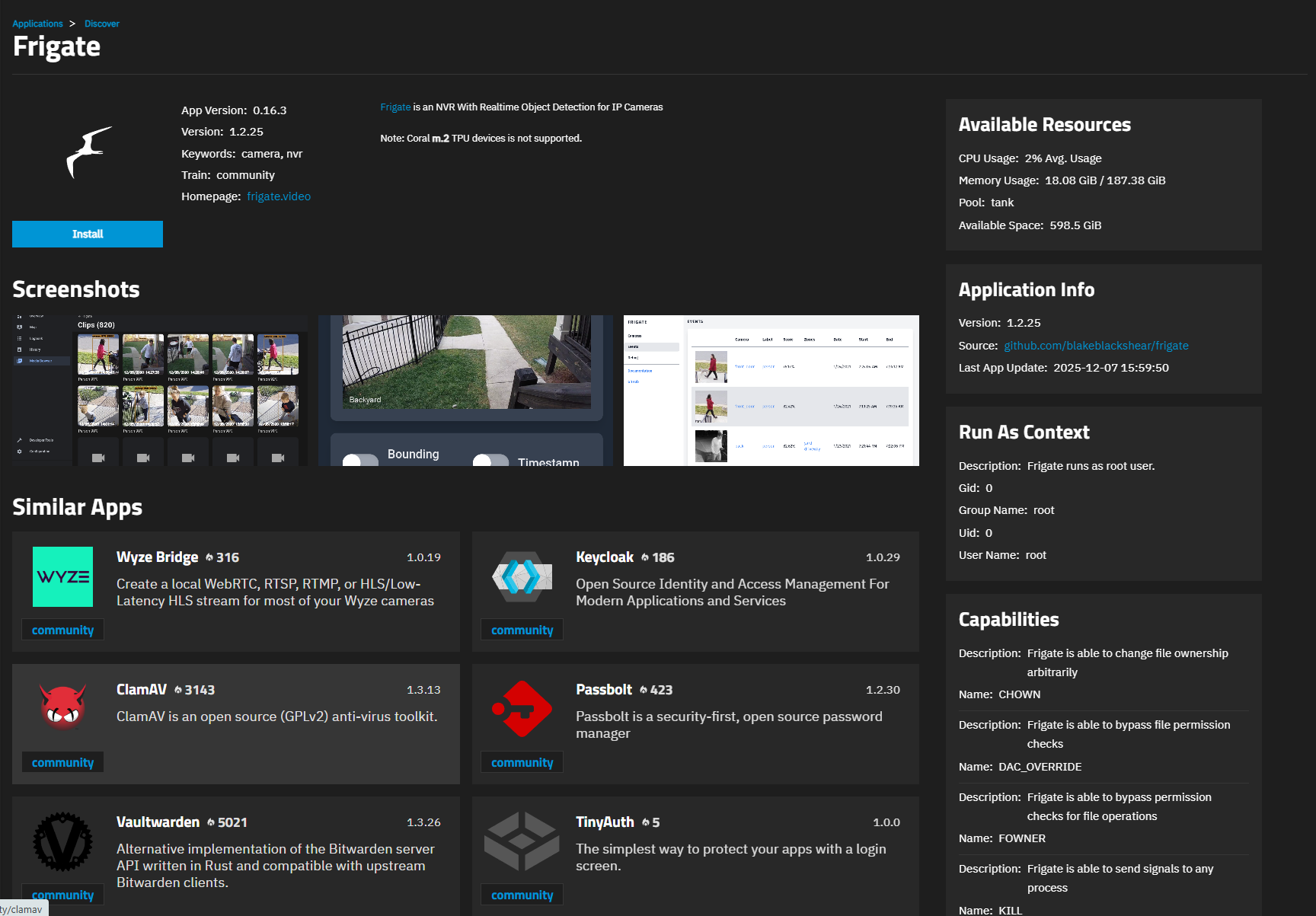
Frigate is an open-source Network Video Recorder (NVR) built around real-time AI object detection for IP cameras. It runs entirely locally on your hardware, ensuring your camera feeds never leave your home. This provides privacy-focused home surveillance with advanced AI features like person, vehicle, and animal detection.

Frigate uses OpenCV and TensorFlow to perform real-time object detection locally for IP cameras. By offloading object detection to a supported AI accelerator, even modest hardware can run advanced analysis to determine if motion is actually a person, car, or other object of interest.

TrueNAS Frigate app provides a complete local NVR solution designed for privacy-conscious users who want advanced AI-powered video surveillance without relying on cloud services.

Refer to the Frigate app information screen for details on the version and release.

This procedure provides setup instructions for the TrueNAS Frigate app and how to configure it to support AI-powered object detection for your IP camera surveillance system.

TrueNAS offers one deployment option for setting up Frigate, a Linux-based TrueNAS application available in TrueNAS releases 24.10 and later.

Before You Begin

Before you install the Frigate app:

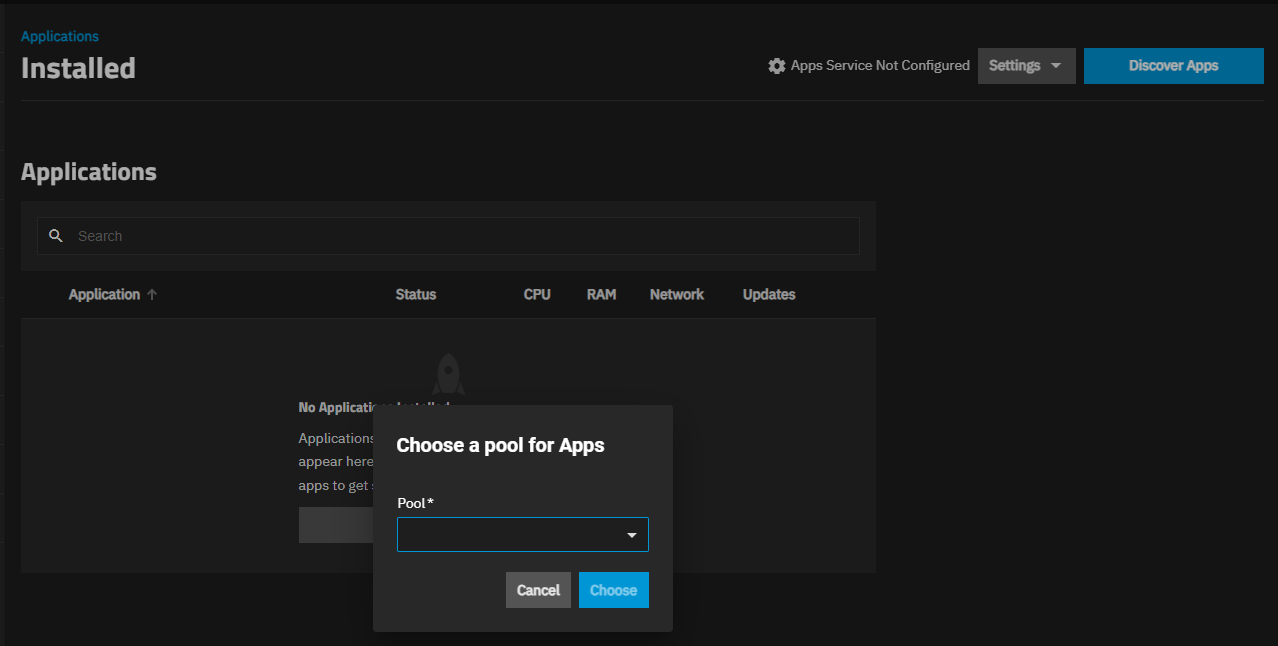
  • Set a pool for applications to use if not already assigned.

    You can use either an existing storage pool or create a new one. TrueNAS creates the ix-apps (hidden) dataset in the pool set as the application pool. This dataset is internally managed, so you cannot use this as the parent when you create required application datasets.

    After setting the pool, the Installed Applications screen displays Apps Service Running on the top screen banner.
  • Locate the run-as user for the app.

    Take note of the run-as user for the app, shown on the app information screen in the Run As Context widget and in the Application Metadata widget on the Installed applications screen after the app fully deploys. The run-as user(s) get added to the ACL permissions for each dataset used as a host path storage volume.
  • (Optional) Create datasets for the storage volumes for the app.

    Do not create encrypted datasets for apps if they are not required! Using an encrypted dataset can result in undesired behaviors after upgrading TrueNAS when pools and datasets are locked. When datasets for the containers are locked, the container does not mount, and the apps do not start. To resolve issues, unlock the dataset(s) by entering the passphrase/key to allow datasets to mount and apps to start.

    You can create the required datasets before or after launching the installation wizard. The install wizard includes the Create Dataset option for host path storage volumes. This allows you to create the parent dataset if you want to organize the required datasets under a parent, or you can create all datasets before you begin installing the app.

    To create datasets before using the Install Frigate wizard, go to Datasets and select the pool or parent dataset where you want to place the dataset(s) for the app. For example, /tank/apps/appName.

Frigate requires two datasets: config for app configuration files and media for recorded video storage. You can create a third dataset, cache, or use the tmpfs storage option to create a temporary directory on the RAM for temporary storage and thumbnails.

These datasets store different types of data:

  • config - Contains the Frigate configuration YAML file and other app settings
  • media - Stores recorded video clips and snapshots
  • cache - (Optional) Stores processing and thumbnail generation, or use the tmpfs option to create a directory for temporary storage in RAM

For more information on storage configuration options, refer to the storage configuration options in the Understanding App Installation Wizard Settings section.
Installing the TrueNAS Frigate App

This basic procedure covers the required Frigate app settings. For optional settings, see Understanding App Installation Wizard Settings.

You can have multiple deployments of the same app (for example, two or more from the stable or enterprise trains, or a combination of the stable and enterprise trains).

Naming Multiple App Deployments

Each deployment of the same app requires a unique name. App names can include numbers, dashes, or underscores (for example, syncthing2, syncthing-test, syncthing_1, minio2, etc.).

Use a consistent file-naming convention to avoid conflict situations where data does not or cannot synchronize because of file name conflicts. Path and file names in apps are case-sensitive. For example, a file named MyData.txt is not the same as the mydata.txt file in Syncthing.

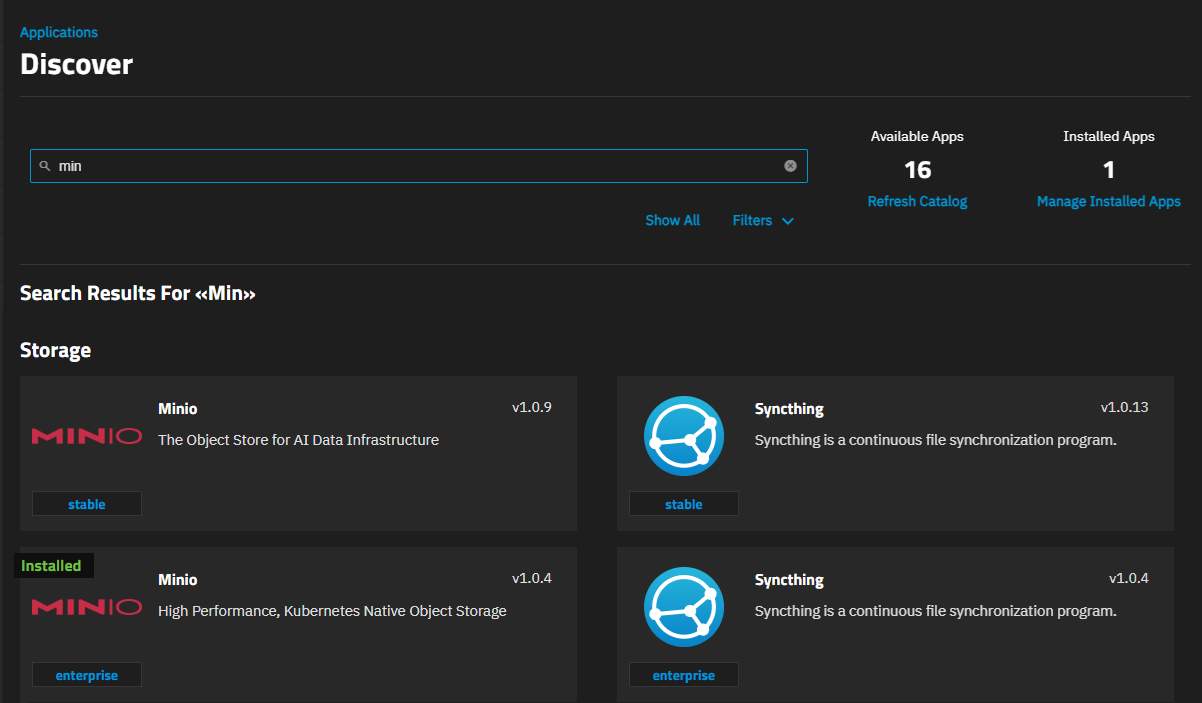
Go to Apps, click on Discover Apps, and locate the app widget by either scrolling down to it or begin typing the name into the search field. For example, to locate the MinIO app widget, begin typing minIO into the search field to show app widgets matching the search input.

Example of Locating an App Widget
Figure 3: Example of Locating an App Widget

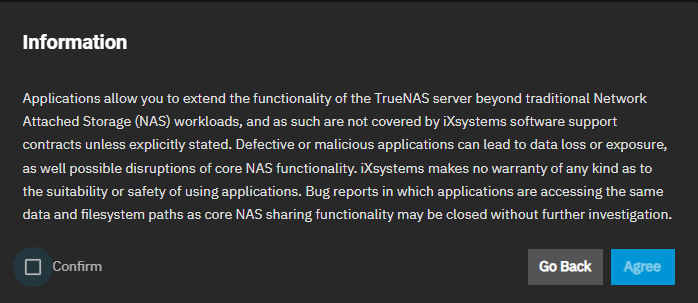
If this is the first application installed, TrueNAS displays a dialog about configuring apps.

Configuring Apps Dialog
Apps Information Dialog
Figure 4: Apps Information Dialog

Click Confirm then Agree to close the dialog and open the application details screen.

If not the first time installing apps the dialog does not show, click on the widget to open the app information screen.

Click Install to open the app installation wizard.

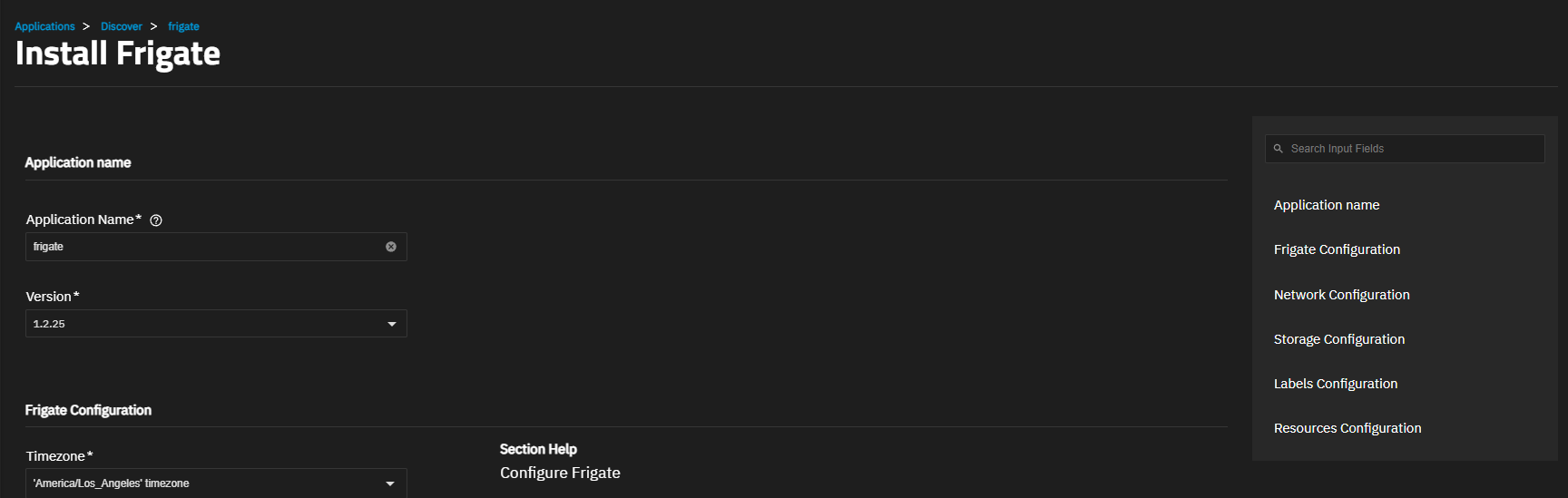
Application configuration settings are grouped into several sections, each explained below in Understanding App Installation Wizard Settings. To find specific fields begin typing in the Search Input Fields search field to show the section or field, scroll down to a particular section, or click on the section heading in the list of sections on the upper-right of the wizard screen.

Install Frigate Screen
Figure 5: Install Frigate Screen

Accept the default value or enter a name in Application Name field. In most cases use the default name, but if adding a second deployment of the application you must change this name.

Accept the default version number in Version. When a new version becomes available, the application shows an update badge and the Application Info widget on the Installed applications screen shows the Update button.

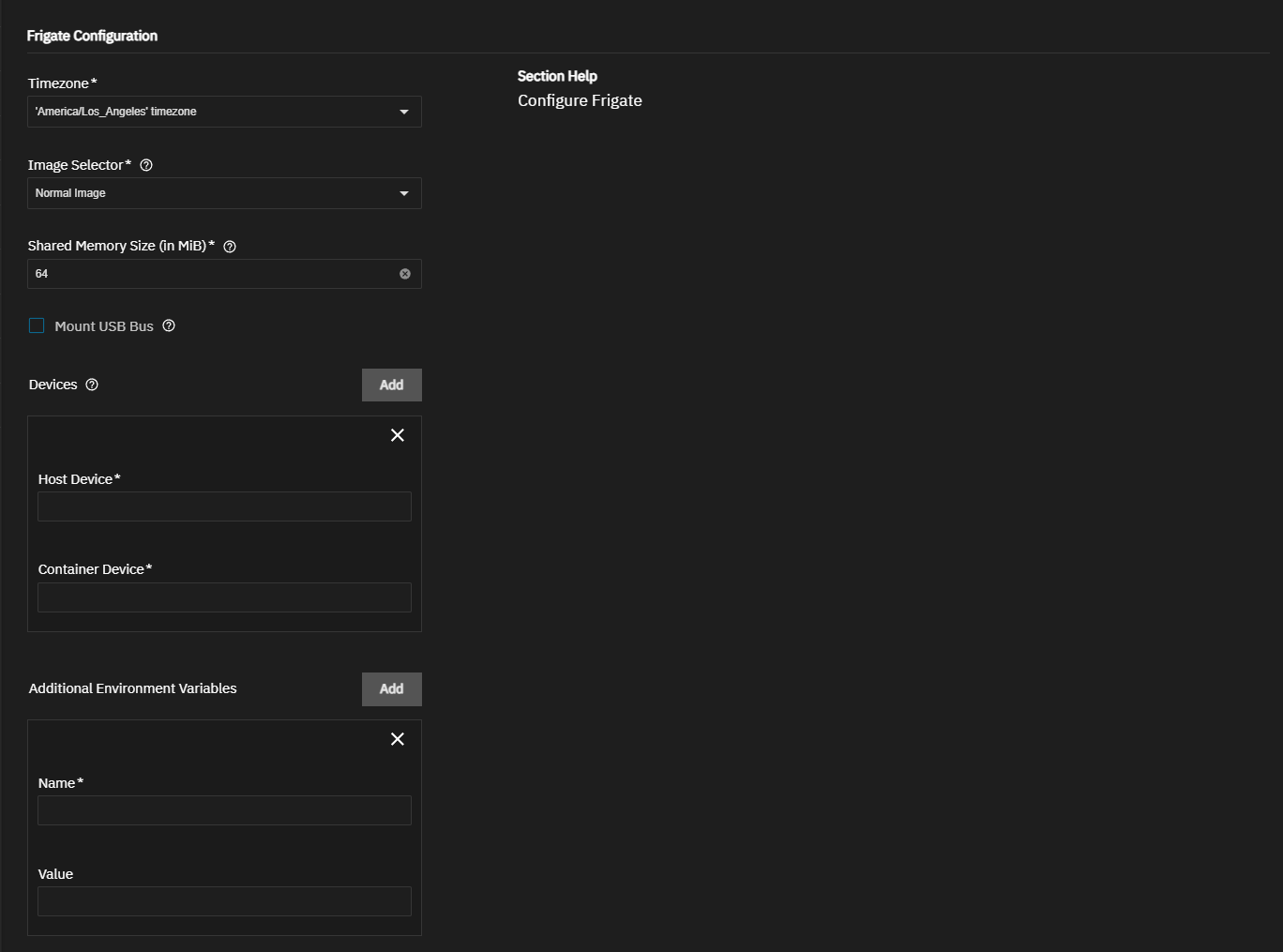
Next, configure the Frigate Configuration settings. You can accept the defaults for many settings, but review the options below for your specific use case.

Entering Frigate Configuration Settings
Install Frigate Configuration Settings
Figure 6: Install Frigate Configuration Settings

Select your local timezone from the Timezone dropdown. This ensures timestamps in recordings and logs are accurate for your location.

Choose Normal Image in Image Selector unless you have specific hardware acceleration requirements. Advanced users with supported hardware can select optimized images.

Set the Shared Memory Size based on your camera setup. Choose the option that applies to your use case.

  • 64 MiB is the default setting for one to two cameras.
  • 128 MiB is for three to five cameras (Frigate recommends this as the minimum for most setups).
  • 256 MiB is for six or more cameras or higher resolution streams.

For specific calculations based on your setup, refer to the Frigate Installation documentation.

Select Mount USB Bus if using a USB accelerator or other USB devices for hardware acceleration.

Click Add next to Devices add hardware acceleration devices (GPU, TPU, etc.). Refer to the list created in the Before You Begin section on hardware acceleration for device paths.

You can log into your Frigate account to configure devices such as cameras, detection zones, and set storage retention policies. Cameras are configured in a yaml file and not in the TrueNAS Install Frigate wizard.

The TrueNAS app is configured with the required environment variables. Add custom variables only if needed for your specific configuration. Environment variables to consider:

  • FRIGATE_RTSP_PASSWORD - if using RTSP restreaming in Frigate.
  • PLUS_API_KEY - if using Frigate+ (cloud service, subscription required)

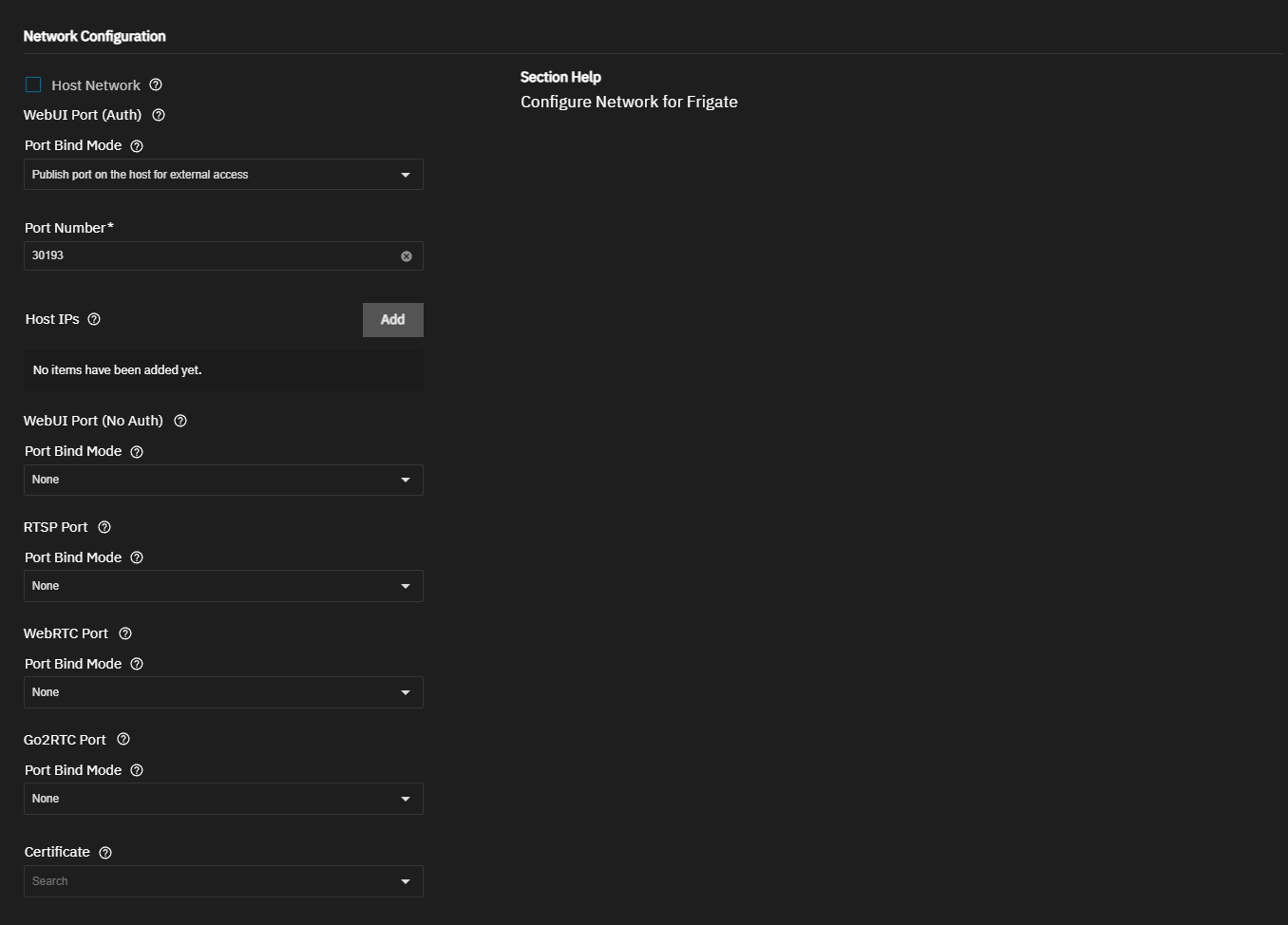
Configure the network settings.

Install Frigate Network Settings
Figure 7: Install Frigate Network Settings

Accept the default port, 30193, in Port Number. See Network Configuration below for more information.

If you want to bind specific host IPs, click Add next to Host IPs and enter the IP addresses.

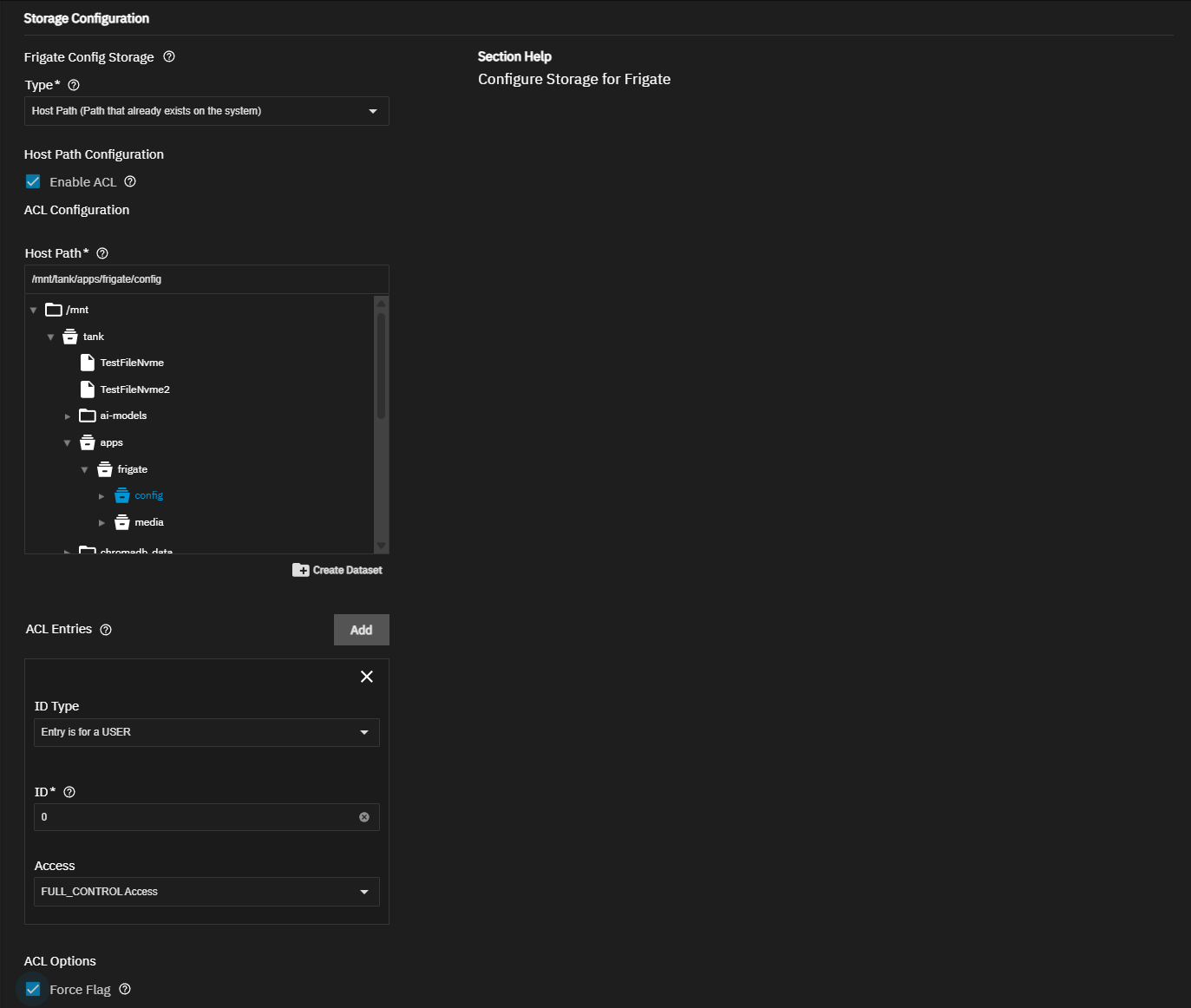
Add your Storage Configuration settings. For Frigate Config Storage, do the following:

Set Type to Host Path (Path that already exists on the system). Select Enable ACL. Use the file browser to navigate to the required dataset. If the config dataset is not created yet, browse to the parent dataset and click on it to activate the Create Dataset option. Create the config dataset.

Frigate Config Storage Settings
Figure 8: Frigate Config Storage Settings

Add an ACE entry for user ID 0 and give it FULL_CONTROL permission.

Select Force Flag to allow app upgrades when the dataset has existing data.

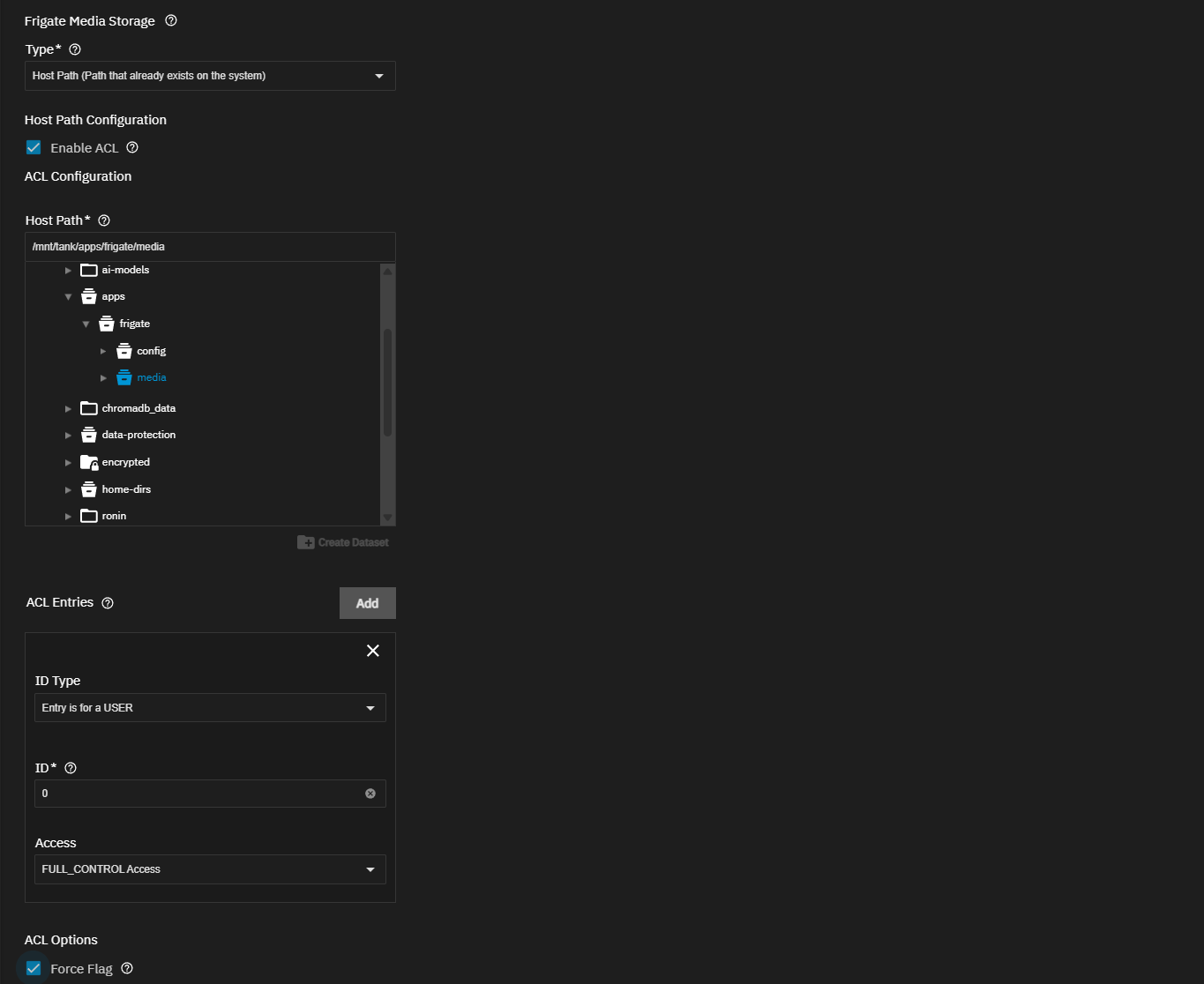
Repeat the steps above for Frigate Media Storage, selecting the media dataset.

Frigate Media Storage Settings
Figure 9: Frigate Media Storage Settings

For Cache Storage, set Type to tmpfs to create a directory in RAM for temporary storage (the recommended option). Select the Tmpfs Size Limit option, and accept the default, which is 500.

Alternatively, to have the cache data persist after restarting the Frigate app, set Type to Host Path. Repeat the steps for Frigate Config Storage above to set up the host path for the optional cache dataset and configure ACL permissions.

Frigate Cache Storage
Figure 10: Frigate Cache Storage

See Storage Configuration Settings below for more information.

Accept the defaults in Resources Configuration, and select GPU options if applicable.

Click Install. A progress dialog displays before switching to the Installed applications screen. The Installed screen displays with the frigate app in the Deploying state. Status changes to Running when ready to use.

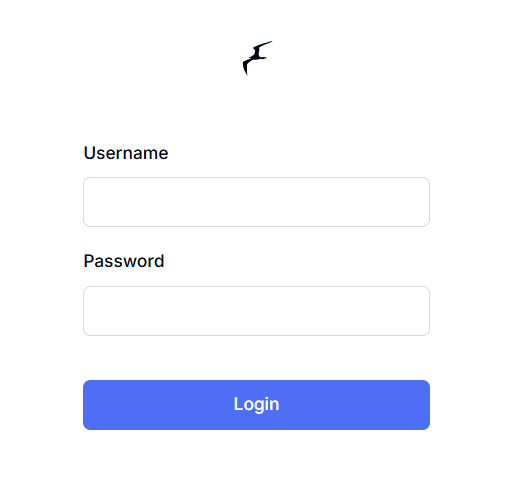
Click Web UI on the Application Info widget to open the Frigate web interface.

Frigate Web UI Login Screen
Figure 11: Frigate Web UI Login Screen

Initial Frigate Account Configuration

After deploying the TrueNAS Frigate app, access the Frigate interface to configure your camera settings and object detection zones.

Camera Configuration

To add camera configuration information in the Frigate app:

Restart the Frigate app to apply changes. On the TrueNAS Applications screen, click the Restart icon for the Frigate app.

Understanding App Installation Wizard Settings

The following sections provide detailed explanations of settings in each section of the TrueNAS Install Frigate installation wizard.

Application Name Settings

Accept the default value or enter a name in Application Name field. In most cases use the default name, but if adding a second deployment of the application you must change this name.

Accept the default version number in Version. When a new version becomes available, the application shows an update badge and the Application Info widget on the Installed applications screen shows the Update button.

Frigate Configuration Settings

Timezone Settings

Select the timezone where your TrueNAS system is located. Begin typing the location into the Timezone field to filter the list until the location shows, then select it.

Hardware Acceleration Settings

The Image Selector option determines which Frigate image to use. Options are:

Enter the memory you want to allocate for inter-process communication in Shared Memory Size. The default 128 MiB is suitable for approximately 2 cameras at 720p resolution. For multiple cameras or higher resolutions, you need to increase this allocation.

To calculate the exact shared memory requirements for your camera setup, use the formula provided in the Frigate Installation documentation: (width × height × 1.5 × 20 + 270480) / 1048576 per camera, plus approximately 40MB for logs.

Select Mount USB Bus to enable access to USB hardware accelerators.

Device Configuration

The Devices section allows adding hardware acceleration devices. Click Add to the right of Devices to show the Host Device and Container Device fields. Enter the paths for the devices based on your use case.

Enter /dev/dri/renderD128 if you have Intel integrated graphics

Enter /dev/nvidia0if you have a NVIDIA GPU device

Enter the custom device paths for other accelerators.

Environment Variables

The app wizard is configured with all settings required to deploy the container, but you can add additional settings if you want to further customize the app in TrueNAS.

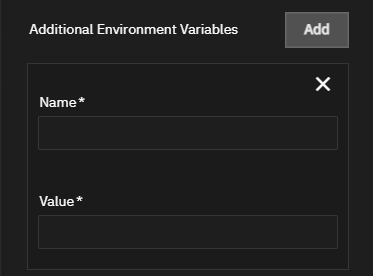
Add Environment Variables
Figure 12: Add Environment Variables

Click Add to the right of Environmental Variables to show a set of fields to configure the application with additional variables.

You can add environment variables to the app configuration after deploying it. Click Edit on the Application Info widget for the app found on the Installed Application screen to open the edit screen.

Network Configuration

Accept the default settings in TrueNAS for the Frigate app.

WebUI Port (Auth) settings configure the ports for the Frigate app. WebUI Port (No Auth) configures port settings without authentication.

Port Number shows the default port 30193 for Frigate web interface.

If the Dockerfile defines an EXPOSE directive, the port is still exposed for inter-container communication regardless of this setting.

All TrueNAS apps are assigned default port numbers. Accept the default port numbers, but if changing port number assignments, enter a number within the range 1-65535, however, 0-1024 might require the application to have elevated privileges. Before changing default ports, refer to the TrueNAS default port list for a list of assigned and available port numbers.

Port Bind Mode sets options for external access, container communication, or no exposure. Port Bind (Auth) and Port Bind Mode have these same options:

RTSP Port specifies the RTSP port for Frigate. It uses the internal port number 8554, and the bind options are the same as those documented above.

WebRTC Port specifies the WebRTC port for Frigate. It uses the internal port number 8555, and the bind options are the same as those documented above.

Go2RTC Port specifies the Go2RTC port for Frigate. The bind options are the same as those documented above.

When using a certificate, the best practice is to import an existing certificate if your system is on release 25.10 or later.

Systems with the latest maintenance TrueNAS 25.04.x or earlier releases can create a self-signed certificate before using the app installation wizard.

If you did not create a certificate before starting the installation wizard, select the default TrueNAS certificate, and then edit the app to change the certificate after deploying the application.

Select the certificate created in TrueNAS for the app from the Certificate dropdown list.

Storage Configuration Settings

TrueNAS provides two main options for storage volumes: ixVolumes and Host Paths. The tmpfs option shows for the cache storage option.

Setting the Storage Volume Type

To allow TrueNAS to create the storage volume, leave Type set to ixVolume (Dataset created automatically by the system). This adds a storage volume for the application nested in the hidden ix-apps dataset, located on the pool selected as the apps pool. ixVolume is suitable for test deployments. For production use, we recommend Host Path with datasets. Data in ixVolumes does not persist after app deletion, while dataset data remains accessible.

Datasets make recovering, transferring, and accessing app configuration, user, or other data possible where ixVolumes do not.

If the install wizard shows a Mount Path, either accept the default value or enter the correct mount path. For example, if the dataset name is data, enter /data as the mount path.

To use an existing dataset, which is the recommended option, set Type to Host Path (Path that already exists on the system).

Select Enable ACL before using the file browser to populate the Host Path field by browsing to select the dataset location. Selecting Enable ACL clears the values in the Host Path field, so we recommend selecting Enable ACL before entering the host path.

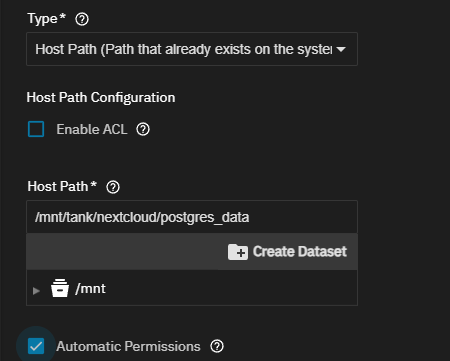
When selecting a dataset for postgres storage, do not use the Enable ACL option. Browse to select the dataset and populate the Host Path field, then select the Automatic Permissions option to properly set the ACL for postgres storage.

To browse to select the parent dataset where you want to create a new dataset, expand the file tree by clicking on the arrow to the left of the dataset name. Click on a dataset to select it and activate the Create Dataset option. Clicking Create Dataset opens a dialog where you enter the name for the new dataset, and then click Create. TrueNAS creates the dataset nested under the selected location. You can use this process to create a parent dataset, and after clicking on the parent dataset, repeat the creation process for a nested child dataset.

Repeat the above for each required dataset.

Frigate needs two datasets for host path storage volume configurations:

The Cache Storage can be set to a host path with a dataset named cache or set to the tmpfs option, which creates a directory in RAM for temporary file storage, thumbnails, etc. Using Host Path requires a dataset. Using tmpfs RAM-based storage is faster, but the directory is cleared on a system restart.

If you nest these datasets under a parent dataset named frigate, and use the Add Dataset form, you can create a dataset with the Dataset Preset set to Generic or Apps.

Configure the config and media dataset ACL permissions in the install wizard by adding an ACL entry for the app user. The app runs as user ID 0 (root). You must configure dataset permissions properly for Frigate to function correctly. Using Enable ACL to set the host path also shows the ACE Entry option. Click ACE Entry to show the three entry settings. Set type to user, enter 0 as the user ID, and set permissions to full control. Select Force Flag to allow TrueNAS to update the app when the dataset has data stored.

When storage volumes include a postgres dataset, do not select Enable ACL to configure permissions. Instead, proceed with entering or browsing to select the dataset to populate the Host Path field, and then select the Automatic Permissions option. This configures permissions for the postgres dataset and, if configured, the parent dataset used to organize required datasets for the app.

Postgres Storage Automatic Permissions
Figure 13: Postgres Storage Automatic Permissions

As with other host path storage volumes, you can create a dataset when entering the host path.

You can use Enable ACL to manually configure ACL permissions for the postgres dataset and a parent dataset, but getting the ACL permissions right is involved and if not correctly configured, you are likely to receive errors after clicking Install on the application installation wizard. Additionally, the Automatic Permissions option does not show on the wizard screen.

Why should I use Automatic Permissions?

Before the Automatic Permissions option, users deploying apps with postgres datasets receive errors or tracebacks prompting them to add built-in users such as the netdata user and others. These built-in users show in the Run As Context widget on the information screen for each app. These users are not added as users through the Credentials > Users > Add User screen and might not show on the list of users. They are run-as users for the app that should be added as ACL entries to the ACL for the dataset host path.

Additionally, the parent dataset created for app datasets nested as children under the parent has different ACL requirements that must be set up when creating the parent dataset. To simplify the process and avoid issues with normal ACL behaviors, use the Automatic Permissions option which properly configures the ACE entries for parent and postgres datasets, and only on empty directories so configure this before using the app to store data.

You can reverse setting the host path with Enable ACL selected and configure ACE entries before you click Install to finish the installation. At this point, you should not receive the error again. If you do not reverse the Enable ACL selection and click Install, when you receive the error, untangling permission issues for the parent and postgres datasets becomes complicated. We recommend you use the Automatic Permissions option.

Configuring Additional Storage Volumes

If you choose to configure additional storage volumes, click Add to the right of Additional Storage to show the Type field with three options:

  • HostPath (Path that already exists on the system)
  • ixVolume (Dataset created automatically by the system)
  • SMB/CIFS Share (Mounts a volume to a SMB share)

The host path option requires an existing dataset on the system. The SMB/CIFS share option shows settings for configuring an SMB share as a storage option.

Labels Configuration Settings

The Labels Configuration settings allow users to configure Docker object labels to add metadata to containers. Docker object labels attach key-value metadata to various Docker objects, such as containers, images, volumes, and networks. Labels are useful for organization, automation, and providing additional context for Docker resources. They can store information such as environment details, ownership, service role, or custom tags for automation tools.

Click Add to display a set of label configuration fields.

Labels Configuration Settings
Figure 14: Labels Configuration Settings

Use Key to define the identifier that categorizes and filters resources, for example com.example.owner. Use Value to enter the associated data for the container, for example team-a.

Select the target container from the Containers dropdown list to apply the label(s). Apps with multiple containers list each container as an option on the dropdown.

Click Add again to configure additional labels.

Tips for Labels:

  • Docker recommends using reverse-DNS notation to prevent conflicts with other objects.
  • Use a consistent naming convention for labels applied across all containers, for example, com.example.owner=team-a, com.example.owner=team-b, com.example.env=production, com.example.env=testing.
  • Use in groupings, for example, when applying configuration changes where labels define or group related database resources (com.example.role=db).
  • Use reverse-DNS notation to prevent conflicts with other objects, as recommended by Docker.
  • Use a consistent naming convention for labels applied across all containers, for example, com.example.owner=team-a, com.example.owner=team-b, com.example.env=production, com.example.env=testing.
  • Use in groupings, for example, when applying configuration changes where labels define or group related database resources (com.example.role=db).
  • Combine labels for more granular control, for example, using com.example.env=prod and com.example.tier=frontend to distinguish frontend from backend services in production environments.

Resource Configuration Settings

Resources Configuration Settings
Figure 15: Resources Configuration Settings

Accept the default values in Resources Configuration or enter new CPU and memory values. By default, this application is limited to use no more than 2 CPU cores and 4096 megabytes available memory. The application might use considerably less system resources.

To customize the CPU and memory allocated to the container the app uses, enter new CPU values as a plain integer value (letter suffix is not required). The default is 4096.

Accept the default value (4 Gb) allocated memory or enter a new limit in bytes. Enter a plain integer without the measurement suffix, for example, 129 not 129M or 123MiB.

GPU Configuration provides the option to enable GPU passthrough. Select Passthrough available (non-NVIDIA) GPUs or, if your system has an NVIDIA GPU device, select Use this GPU.

For more information on GPU passthrough, see TrueNAS Apps.

Frigate Troubleshooting

For troubleshooting and advanced configuration, refer to the official Frigate documentation.